
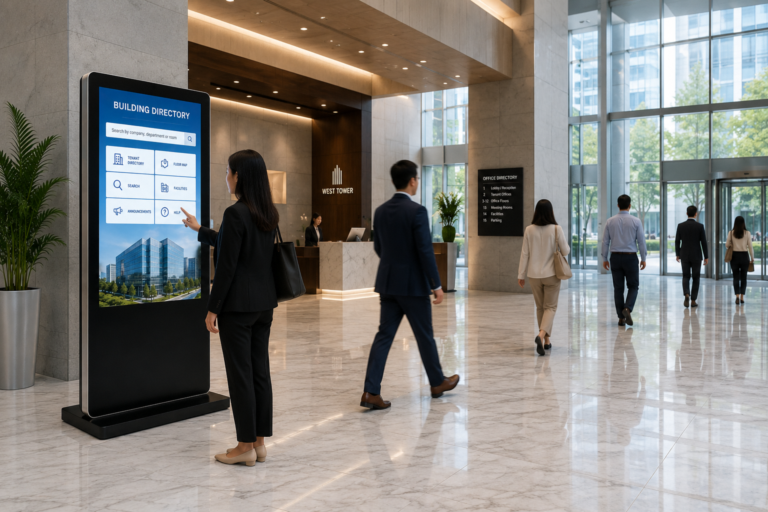
En los edificios de oficinas modernos, centros comerciales, hospitales, campus universitarios y centros de servicios públicos, los visitantes suelen necesitar encontrar una empresa, departamento, sala, ventanilla de atención o planta en poco tiempo. Un directorio tradicional de pared puede mostrar información básica, pero resulta difícil de actualizar cuando los inquilinos se mudan, los departamentos cambian o la distribución del edificio se vuelve más compleja. Un quiosco de directorio de edificios resuelve este problema al combinar una pantalla táctil, software de directorio digital, planos de planta, funciones de búsqueda y gestión remota de contenido en un único sistema de autoservicio. En lugar de preguntar al personal de recepción o consultar carteles estáticos, los visitantes pueden buscar, ver indicaciones y obtener información del edificio directamente desde el quiosco. Esta guía explica qué es un quiosco de directorio de edificios, dónde se utiliza, qué características son importantes y cómo configurarlo paso a paso.
¿Qué es un quiosco de directorio de edificios y dónde se utiliza?
Un quiosco de directorio de edificios es un terminal de autoservicio con pantalla táctil que ayuda a los visitantes a buscar inquilinos, empresas, departamentos, plantas, números de habitaciones, instalaciones públicas e indicaciones dentro del edificio. Generalmente combina el hardware del quiosco, el software de directorio, un sistema de gestión de contenidos e integraciones de sistemas opcionales como señalización, gestión de visitantes, control de acceso o pantallas digitales.
A diferencia de un anuncio publicitario convencional, un quiosco de información de edificios está diseñado para la búsqueda de información y la orientación de los visitantes. Estos pueden usarlo para encontrar adónde ir, qué piso visitar, qué zona de ascensores usar o cómo llegar a una habitación, oficina, clínica, tienda o ventanilla de atención al cliente.
Antes de elegir un quiosco de información para edificios, conviene entender en qué se diferencia de un directorio tradicional de pared. La principal diferencia no reside solo en la pantalla, sino también en la capacidad de buscar, actualizar, interactuar y guiar a los visitantes en tiempo real.
Tabla comparativa: Directorio de edificios tradicional frente a quiosco de directorio de edificios
| Directorio de edificios tradicionales | Quiosco con directorio de edificios |
|---|---|
| Placa de identificación estática | Interfaz digital de pantalla táctil |
| Reemplazo manual | Actualización remota de contenido |
| Listado limitado de inquilinos | Search, map, notice, and orientación |
| Sin interacción | Guía de autoservicio para visitantes |
| Difícil de actualizar con frecuencia | Fácil de gestionar a través de CMS |
| Normalmente muestra información básica del piso. | Puede mostrar inquilinos, habitaciones, instalaciones, rutas y anuncios. |
Gracias a estas ventajas, los quioscos de información de edificios ya no se limitan a los vestíbulos de las oficinas. Ahora se utilizan en muchos edificios donde los visitantes necesitan acceso rápido a información sobre la ubicación, los inquilinos, los departamentos o los servicios.
Tabla de aplicaciones: Escenarios comunes de quioscos de directorio de edificios
| Guión | Uso típico |
|---|---|
| Edificios de oficinas | Directorio de inquilinos, búsqueda de empresas, guía de planta |
| Vestíbulos comerciales | Guía para visitantes, directorio de empresas |
| centros comerciales | Búsqueda de tiendas, plano de planta, exhibición de promociones |
| hospitales | Dirección de departamento, clínica y farmacia |
| Campus | Búsqueda de aulas, laboratorios, oficinas e instalaciones |
| Edificios gubernamentales | Directorio de ventanillas de servicio y departamentos |
| Hoteles y centros de conferencias | Sala de reuniones, salón de banquetes, guía de eventos |
¿Qué problemas resuelve un quiosco de información sobre edificios?
Para administradores de propiedades, operadores de edificios de oficinas, equipos de mantenimiento e integradores de sistemas, resuelve varios problemas de gestión diaria que los directorios de edificios tradicionales no pueden manejar con eficiencia. Cuando cambia la información de los inquilinos, aumenta el flujo de visitantes o la distribución del edificio se vuelve más compleja, un quiosco de directorio digital facilita la actualización, la búsqueda y la gestión de la información.
| Problema | Cómo ayuda el quiosco |
|---|---|
| Información desactualizada del inquilino | Un CMS permite a los equipos de administración de propiedades actualizar de forma remota los nombres de las empresas, los números de piso, los números de habitación y los detalles de los departamentos. Esto reduce la necesidad de rehacer letreros impresos o reemplazar manualmente las placas de identificación cada vez que un inquilino se muda o cambia de espacio de oficina. |
| Demasiadas consultas en recepción | Los visitantes pueden buscar inquilinos, habitaciones, departamentos o instalaciones por sí mismos. Esto reduce las preguntas repetitivas en la recepción y permite que el personal se centre en el registro de visitantes, los controles de seguridad y otras tareas de mayor valor. |
| Diseño complejo del edificio | Los planos de planta, el buscador de directorios y la señalización opcional ayudan a los visitantes a saber dónde se encuentran y adónde deben dirigirse. Esto resulta especialmente útil en edificios con varias torres, zonas de ascensores, entradas o áreas de servicio. |
| Necesidades de los visitantes multilingües | Una interfaz multilingüe puede brindar soporte a inquilinos internacionales, visitantes extranjeros, turistas, pacientes, estudiantes o huéspedes de negocios. En lugar de depender únicamente del personal de recepción, el quiosco ofrece una experiencia de autoservicio más clara para usuarios que hablan diferentes idiomas. |
| Avisos inconsistentes | Los anuncios de la propiedad, los avisos de mantenimiento, la información sobre eventos, los recordatorios de seguridad y los mensajes de emergencia se pueden publicar de forma centralizada a través del CMS. Esto ayuda a los administradores del edificio a mantener la información coherente en el vestíbulo, el pasillo de los ascensores y las áreas comunes. |
| Mala experiencia para los visitantes | Una búsqueda más rápida, indicaciones más claras y la posibilidad de autoservicio mejoran la primera impresión que el visitante tiene del edificio. Un quiosco de información bien diseñado le da al vestíbulo un aspecto más moderno, organizado y profesional. |
Desde una perspectiva operativa, el mayor valor no reside simplemente en “mostrar información”. El verdadero valor radica en reducir el trabajo manual, mejorar la precisión de la información y crear un flujo de visitantes más eficiente. Por ejemplo, cuando una empresa cambia de oficina del octavo al duodécimo piso, el equipo de administración puede actualizar los datos del directorio desde el sistema en lugar de reemplazar un letrero físico. Si un visitante llega en horas punta, puede usar el quiosco para encontrar la empresa o el departamento sin tener que esperar en la recepción.
For system integrators, a building directory kiosk also creates room for future expansion. It can start as a simple tenant directory and later connect with indoor maps, visitor management systems, access control, elevator guidance, digital signage content, or QR code navigation. This makes it a practical solution for buildings that want to upgrade visitor service step by step, instead of replacing the whole system at once. For buildings that need broader lobby communication, announcements, emergency notices, and tenant service guidance, a property management interactive display can extend the directory kiosk into a more complete property operation interface.
Componentes principales de una solución de quiosco de directorio de edificios
Una solución de quiosco de directorio de edificios generalmente incluye cuatro partes: Hardware para quioscos, software de directorio, una plataforma de gestión CMS e integraciones de sistemas opcionales.. El hardware proporciona el punto de contacto físico, mientras que el software y el CMS controlan cómo se muestra y actualiza la información del directorio, los mapas, los avisos y el contenido de la interfaz.
Hardware para quioscos
El hardware es la parte visible del sistema. Puede diseñarse como un Quiosco de pie, pantalla mural, pantalla integrada o terminal de vestíbulo personalizado., dependiendo del entorno de instalación.
| Componente de hardware | Descripción |
|---|---|
| Pantalla táctil | Interfaz principal para que los visitantes busquen inquilinos, habitaciones, plantas y mapas. |
| Tipo de carcasa | Diseños de pie, de pared o empotrados para diferentes espacios de vestíbulo. |
| Sistema Android o Windows | Ejecuta el software de directorio y admite diferentes necesidades de rendimiento. |
| Módulo de red | Admite WiFi, Ethernet o 4G/5G para actualizaciones remotas. |
| Gabinete metálico | Protege los componentes internos y permite un uso comercial a largo plazo. |
| Módulos opcionales | Cámara, escáner, impresora o altavoz para el registro de visitantes, escaneo de códigos QR, impresión de entradas o indicaciones de voz. |
Software de directorio
El software de directorio es la interfaz que utilizan los visitantes. Organiza la información del edificio en un formato visual y de búsqueda, lo que ayuda a los usuarios a encontrar inquilinos, oficinas, departamentos, habitaciones, instalaciones o plantas.
| Módulo de software | Descripción |
|---|---|
| Directorio de inquilinos | Muestra los nombres de las empresas, los departamentos, los números de piso y los números de habitación. |
| Función de búsqueda | Permite realizar búsquedas por nombre, palabra clave, habitación, departamento o instalación. |
| Filtro de categoría | Agrupa la información por tipo de inquilino, piso, servicio o instalación. |
| Visualización del plano de planta | Muestra los planos de planta, las entradas, los ascensores, los baños y los puntos de destino. |
| Interfaz multilingüe | Admite diferentes versiones en idiomas para visitantes internacionales. |
La interfaz debe ser sencilla: una página de inicio clara, una barra de búsqueda grande, texto legible y categorías lógicas suelen ser mejores que un diseño complicado.
Plataforma de gestión de CMS
El CMS permite a los administradores de propiedades actualizar el contenido de los quioscos desde el panel de administración. Esto es especialmente importante cuando los nombres de los inquilinos, los números de habitación, los avisos o la información de los pisos cambian con frecuencia.
| Función CMS | Descripción |
|---|---|
| Actualización remota de contenido | Actualiza los datos del directorio, los avisos, las imágenes y el contenido de la interfaz. |
| Edición de datos de inquilinos | Edita nombres de empresas, habitaciones, plantas, logotipos y categorías. |
| Gestión de mapas y avisos | Gestiona los planos de planta, la información pública, los mensajes de seguridad y los avisos de eventos. |
| Control de permisos de administrador | Asigna diferentes permisos de edición al personal de mantenimiento, recepción o informática. |
| Publicación programada | Publica contenido en los horarios previstos para eventos o avisos de mantenimiento. |
En proyectos que abarcan varios edificios, un único CMS puede gestionar varios quioscos distribuidos en diferentes vestíbulos, torres o plantas.
Integración opcional
Algunos proyectos solo necesitan software de directorio y CMS. Los proyectos más avanzados pueden requerir la integración con otros sistemas de gestión de edificios.
| Opción de integración | Descripción |
|---|---|
| Sistema de gestión de visitantes | Permite el registro de entrada, la verificación de citas, la notificación al anfitrión o la impresión de credenciales. |
| Control de acceso | Se conecta con puertas, portones o permisos de visitantes. |
| Sistema de ascensores | Guía a los visitantes a la zona, torre o piso correcto del ascensor. |
| Sistema de gestión de contenido (CMS) para señalización digital | Muestra anuncios, promociones para inquilinos y comunicados públicos. |
| Navegación mediante código QR | Permite a los visitantes continuar la navegación en sus teléfonos móviles. |
| Sistema de gestión de edificios | Se conecta con los sistemas operativos generales de la instalación cuando es necesario. |
Para un pequeño edificio de oficinas, un directorio con pantalla táctil y sistema de gestión de contenidos (CMS) puede ser suficiente. Para hospitales, campus universitarios, centros comerciales o grandes complejos comerciales, los mapas, la señalización, la navegación mediante códigos QR y las integraciones pueden ser más importantes.
Características clave que los compradores deben considerar
Al elegir un quiosco de directorio de edificios, los compradores no solo deben preguntar: "¿Qué funciones tiene?". Una pregunta mejor es: ¿Qué características son realmente útiles para este edificio y cuáles son opcionales? El vestíbulo de una pequeña oficina puede requerir únicamente la búsqueda de inquilinos y actualizaciones remotas, mientras que un hospital, un centro comercial, un campus universitario o un edificio gubernamental pueden requerir mapas, señalización interior, asistencia multilingüe y avisos de emergencia.
| Característica | Beneficio para el comprador |
|---|---|
| Búsqueda en pantalla táctil | Los visitantes pueden buscar rápidamente empresas, departamentos, salas, plantas, ventanillas de atención al público o instalaciones públicas. Esto reduce la carga de trabajo en recepción y mejora la eficiencia del autoservicio. |
| Visualización del plano de planta | Un plano visual de la planta ayuda a los visitantes a comprender más fácilmente la distribución del edificio, especialmente cuando este tiene varias entradas, zonas de ascensores, pasillos o áreas de servicio. |
| Orientación en interiores | La señalización es útil en grandes edificios, hospitales, centros comerciales, campus universitarios e instalaciones públicas. Ayuda a los visitantes a saber dónde están, adónde deben ir y qué ruta seguir. |
| Actualización remota de CMS | Los equipos de administración de propiedades pueden actualizar los nombres de los inquilinos, los números de habitación, los mapas, los avisos, las imágenes y los anuncios desde el panel de administración. Esto reduce los costos de reemplazo manual y mantiene la información actualizada. |
| Interfaz multilingüe | En edificios de oficinas internacionales, hoteles, hospitales, campus universitarios, aeropuertos y espacios públicos, la asistencia multilingüe ayuda a los diferentes grupos de visitantes a utilizar el quiosco con mayor facilidad. |
| Navegación mediante código QR | Los visitantes pueden escanear un código QR y seguir las indicaciones en sus teléfonos móviles. Esto resulta útil cuando el destino está lejos del quiosco o la distribución del edificio es compleja. |
| Exhibición publicitaria | El quiosco también puede mostrar promociones para inquilinos, anuncios del edificio, información sobre eventos o contenido publicitario cuando no se está utilizando activamente para realizar búsquedas. |
| Aviso de emergencia | En situaciones de urgencia, el sistema puede publicar mensajes de seguridad, alertas de mantenimiento, avisos de evacuación o actualizaciones temporales del edificio de forma más rápida y constante. |
Para la mayoría de los compradores, la clave está en que las características se ajusten a las necesidades de uso reales. Para un pequeño edificio de oficinas, la búsqueda de inquilinos y un sistema de gestión de contenidos remoto pueden ser suficientes. Para un hospital, un centro comercial o un campus universitario, los planos de planta, la señalización y el soporte multilingüe cobran mucha más importancia. Si el quiosco se ubica en el vestíbulo de un local comercial o en un centro comercial, la publicidad puede aportar un valor añadido. Si se utiliza en un edificio gubernamental, un hospital o un centro de servicios públicos, los avisos de emergencia y un diseño de interfaz accesible deben considerarse características más importantes.
Cómo configurar un quiosco de directorio de edificios paso a paso
Instalar un quiosco de directorio de edificios no se limita a colocar una pantalla táctil en el vestíbulo. Un proyecto exitoso requiere una planificación clara, datos precisos del edificio, hardware adecuado, software fácil de usar y un proceso de mantenimiento sencillo. Los siguientes pasos pueden ayudar a los administradores de propiedades, operadores de edificios e integradores de sistemas a planificar la instalación de manera más eficiente.
Paso 1: Definir el alcance del proyecto
Antes de elegir el hardware o el software, primero aclare qué funciones debe tener el quiosco. Algunos edificios solo necesitan un directorio digital sencillo para los inquilinos, mientras que otros pueden requerir planos de planta, señalización interior, publicidad, registro de visitantes o integración con otros sistemas.
Las preguntas clave incluyen:
| Pregunta | Por qué es importante |
|---|---|
| ¿Solo necesitas la búsqueda en el directorio? | Adecuado para pequeños edificios de oficinas o vestíbulos comerciales sencillos. |
| ¿Necesitas planos de planta? | Importante para edificios con varias plantas, entradas o instalaciones públicas. |
| ¿Necesita señalización para orientarse en interiores? | Útil para hospitales, centros comerciales, campus universitarios y grandes complejos de oficinas. |
| ¿Quieres reproducir anuncios o notificaciones? | Permite utilizar la pantalla para anuncios, promociones o mensajes a los inquilinos. |
| ¿Necesitas integración? | Los sistemas de visitantes, el control de acceso, los ascensores o los sistemas de gestión de contenidos (CMS) de señalización digital pueden requerir una planificación adicional. |
Definir el alcance con anticipación ayuda a evitar sobredimensionar el sistema o elegir características que el edificio realmente no necesita.
Paso 2: Elija la ubicación de instalación.
El quiosco debe instalarse donde los visitantes buscan información de forma natural. Los lugares comunes incluyen: vestíbulo principal, área de recepción, vestíbulo de ascensores, entrada del edificio, atrio del centro comercial o pasillo principal del hospital..
When selecting the location, check whether the kiosk is close to the visitor entrance, easy to see, and convenient to use. It should not block walking paths, emergency exits, or reception workflows. The location should also support power supply and stable network connection. For public buildings, the screen height and touch area should be friendly to wheelchair users and different visitor groups.
Paso 3: Preparar los datos del edificio y de los inquilinos.
Los datos precisos son la base de un buen quiosco de directorio de edificios. Antes de configurar el software, el operador del edificio debe preparar toda la información del directorio en un formato limpio y estructurado.
Los datos comunes incluyen:
| Tipo de datos | Ejemplo |
|---|---|
| Nombre del inquilino/empresa | ABC Trading Co., Clínica Dental Sunrise |
| Número de piso | 3F, 8F, 12F |
| Número de habitación | Habitación 305, Suite 1208 |
| Categoría | Oficina, clínica, comercio minorista, servicio gubernamental |
| Logo | Logotipo opcional del inquilino o departamento |
| Instalaciones públicas | Baños, ascensores, estacionamiento, recepción, salidas |
| Zona de ascensores | Zona A, Zona B, Torre 1, Torre 2 |
| Plano de planta | Plano del vestíbulo, distribución de la planta, ubicación de las salas. |
| Versiones de idioma | Inglés, chino, árabe, español, etc. |
Si los datos están incompletos o desactualizados, el quiosco puede parecer moderno, pero aun así guiar a los visitantes de forma incorrecta. Este paso debe manejarse con cuidado.
Paso 4: Seleccione el hardware y el tipo de instalación.
Tras confirmar el caso de uso y la ubicación, elija el formato de hardware adecuado. quiosco de pie Es común en vestíbulos principales y entradas comerciales porque es muy visible. pantalla montada en la pared ahorra espacio en pasillos o vestíbulos de ascensores. pantalla integrada Funciona bien para proyectos de interiores de alta gama. Para entradas, campus o áreas semiabiertas, puede ser necesario un diseño de quiosco exterior o semiabierto.
Los aspectos importantes del hardware incluyen:
| Artículo de ferretería | Qué confirmar |
|---|---|
| Tamaño de pantalla | 32, 43, 49 o 55 pulgadas dependiendo de la distancia de visualización y el espacio |
| Tipografía táctil | El tacto capacitivo se utiliza comúnmente para una interacción fluida. |
| Brillo | Puede que se necesite mayor luminosidad cerca de ventanas o entradas. |
| Sistema operativo | Android o Windows, según las necesidades de software. |
| Material del gabinete | Armario metálico para mayor durabilidad comercial. |
| Conexión de red | WiFi, Ethernet o 4G/5G según las condiciones del sitio. |
El objetivo no es elegir la configuración más cara, sino seleccionar un hardware que se adapte al entorno del edificio y al uso diario.
Paso 5: Configurar el software y el CMS
Una vez que los datos y el hardware estén listos, el siguiente paso es la configuración del software y del CMS. Esto incluye configurar la interfaz de la página de inicio, la barra de búsqueda, el menú de categorías, el plano de planta, las opciones de idioma, las cuentas de administrador y los permisos de publicación.
Una buena interfaz debe hacer que la primera acción sea obvia. Por ejemplo, los visitantes deben saber de inmediato si deben buscar el nombre de una empresa, elegir una planta, seleccionar una categoría o ver el mapa. El CMS también debe permitir que el personal del edificio actualice la información de los inquilinos, los avisos, los mapas y los mensajes de emergencia sin depender de los promotores cada vez.
Entre las configuraciones importantes del CMS se incluyen:
- Diseño de la página de inicio
- Barra de búsqueda y reglas de palabras clave
- Menú de categorías
- Visualización del plano de planta
- Opciones de idioma
- Permisos de la cuenta de administrador
- Publicación programada
- Plantilla de aviso de emergencia
Paso 6: Probar el flujo de usuario visitante
Antes de su lanzamiento al público, el quiosco debe probarse desde la perspectiva de un usuario real. No basta con comprobar si la pantalla se enciende. Es importante verificar que un visitante que acude por primera vez pueda encontrar la empresa, la sala, el departamento o la instalación que busca.
Las comprobaciones clave incluyen:
| Elemento de prueba | Qué comprobar |
|---|---|
| Precisión de la búsqueda | ¿Pueden los usuarios encontrar inquilinos por nombre, palabra clave, piso o categoría? |
| Claridad del mapa | ¿Están despejadas las entradas, los ascensores, los baños y los destinos? |
| Precisión de la ruta | ¿Coincide el recorrido de orientación con la distribución real del edificio? |
| Respuesta táctil | ¿La pantalla es fluida y fácil de usar? |
| Tamaño de fuente | ¿Pueden los usuarios leer la información desde una distancia cómoda? |
| Precisión lingüística | ¿Son correctas y naturales las etiquetas multilingües? |
| Comprensión del usuario | ¿Pueden los usuarios mayores y los visitantes primerizos comprender el funcionamiento? |
Las pruebas ayudan a detectar pequeños problemas antes de que se conviertan en quejas diarias.
Paso 7: Capacitar al personal y planificar el mantenimiento.
Tras la instalación, el equipo del edificio deberá saber cómo operar y mantener el sistema. La capacitación básica debe abarcar cómo actualizar la información de los inquilinos, cambiar los números de las habitaciones, modificar la información de los pisos, publicar anuncios, reiniciar el quiosco, verificar la conexión de red y contactar con el soporte técnico.
Un plan de mantenimiento sencillo también es importante. Por ejemplo, los equipos de administración pueden revisar la información de los inquilinos mensualmente, actualizar los mapas cuando cambie la distribución, verificar el rendimiento de la pantalla con regularidad y preparar plantillas de avisos de emergencia con anticipación. Esto permite que el quiosco con el directorio del edificio siga siendo útil después de su lanzamiento, en lugar de convertirse en otra pantalla obsoleta en el vestíbulo.
Preguntas frecuentes
Un quiosco de directorio de edificios es un terminal de autoservicio con pantalla táctil que ayuda a los visitantes a buscar inquilinos, oficinas, departamentos, habitaciones, pisos, instalaciones e indicaciones dentro de un edificio.
Not exactly. A building directory kiosk focuses on directory search and building information, while a wayfinding kiosk focuses more on route guidance. Many modern systems combine both.
Sí. Con un CMS, los administradores de propiedades pueden actualizar de forma remota los nombres de los inquilinos, los números de las habitaciones, los planos de las plantas, los avisos y el contenido en diferentes idiomas.
Normalmente se necesitan los nombres de los inquilinos, los números de planta, los números de habitación, las categorías, los planos de planta, la información sobre las zonas comunes de los ascensores, las versiones de idioma y la configuración de la cuenta de administrador.